Files & Library
Finding and organizing books on the device, and getting books onto it from a computer or phone.
Firmware 1.6.5-ko.11 · screens from the X3 (Korean UI)
Browse files
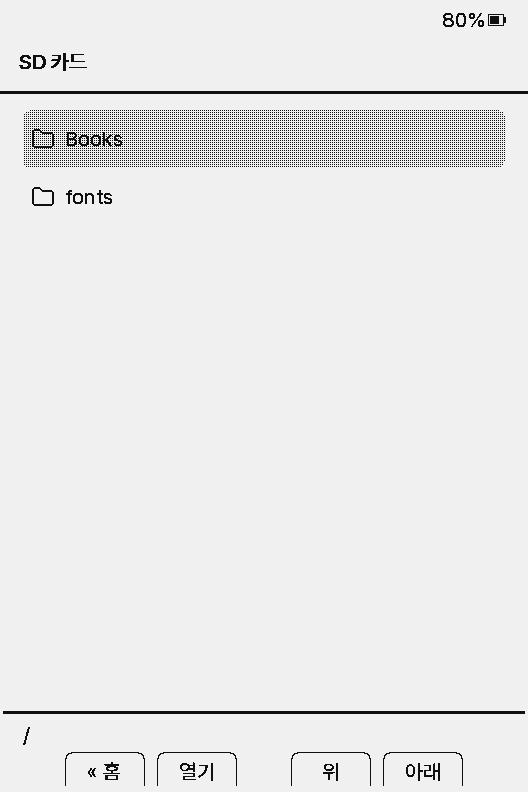
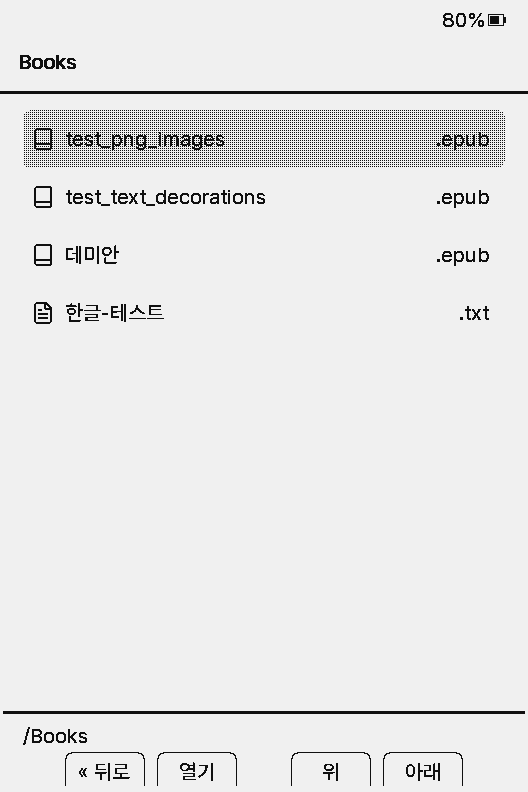
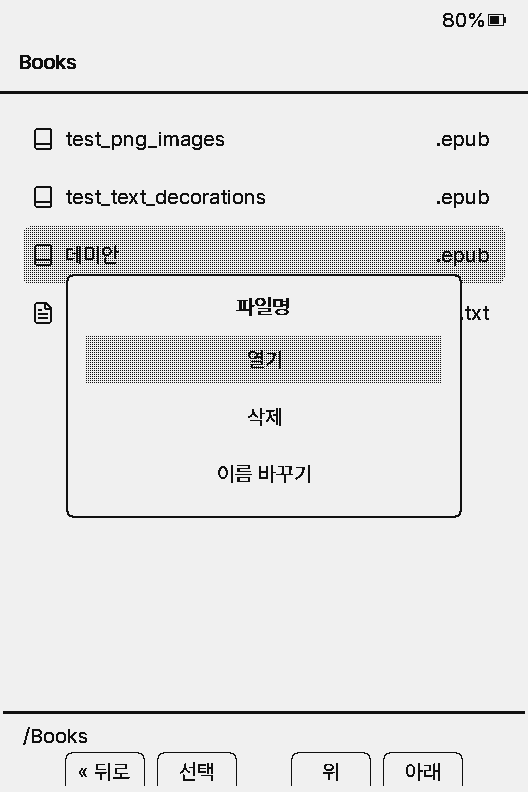
- Shows the SD card's folders and files as they are. The current folder name is at the top and the path at the bottom left.
- Confirm: open a folder or a book.
- Hold Confirm: Open, Delete, or Rename for a file; Open or Delete for a folder.
- Back: up one folder, or Home from the top. Hold it for more than a second to jump to the SD card root.
- Names with numbers sort by value (vol 5, vol 5.5, vol 6 / 1.2, 1.10). Long names wrap onto two lines.
- Hidden files starting with a dot appear when Settings → System → Show Hidden Files is on.
Library
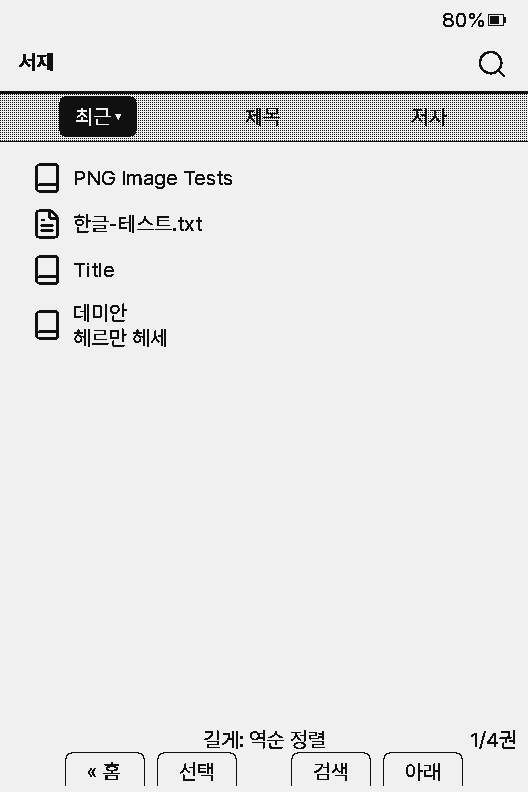
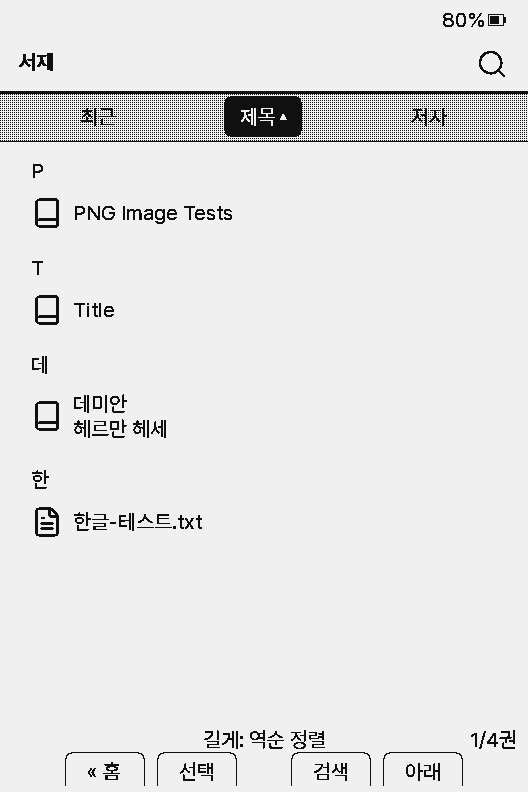
- Collects books from anywhere on the SD card. The first time, it shows “Reading your books...” while it builds the list.
- Tabs: Recent / Title / Author. On the tab bar, Confirm moves to the next tab.
- Title and Author tabs group books by first letter or author. Holding a button gives extra actions such as reverse sort, options, or jumping between groups; the bottom line shows what is available.
- Choose the magnifier at the top right to search with the on-screen keyboard.
- In Recent you can remove a book from the list, or hold Open to delete it.
- If the list is out of date after adding or deleting books, run Refresh library.
- Titles and authors come from the book's own metadata. To see file names instead, turn off Settings → System → Use Book Metadata.
File transfer
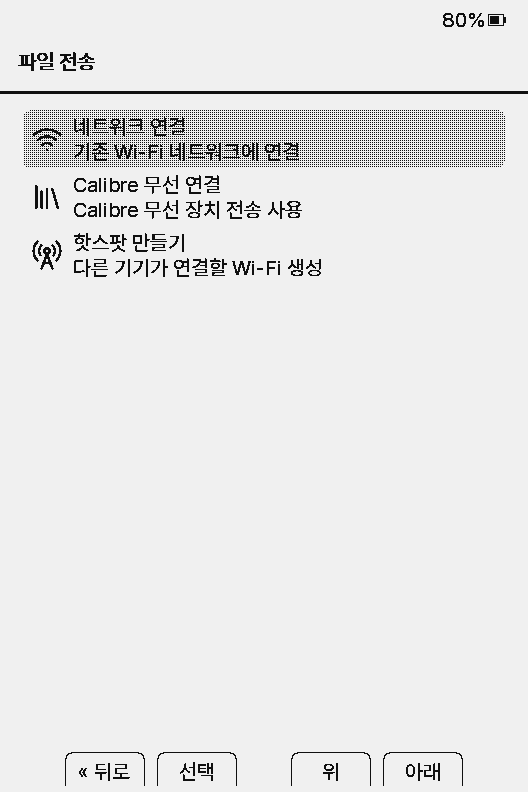
Pick a method under Home → File Transfer.
- Join a Network
- Connects to your Wi-Fi and starts a web server. Open the address or scan the QR code in a browser to upload and download books. WebDAV lets you mount it like a folder.
- Calibre Wireless
- Receive books with Calibre's “Send to device”. See Calibre below.
- Create Hotspot
- The reader starts its own Wi-Fi (CrossPoint-Reader). Scan the first QR to join it with your phone, then the second QR or the address to open the page.
- USB Drive
- X4 Pro, X4 Classic, and Paper Mono only. Mounts the SD card on your computer. Eject it or unplug the cable to return Home.
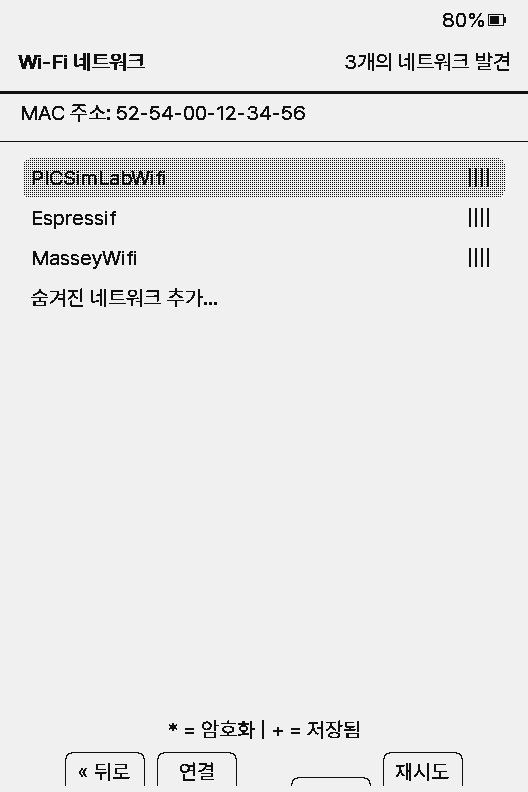
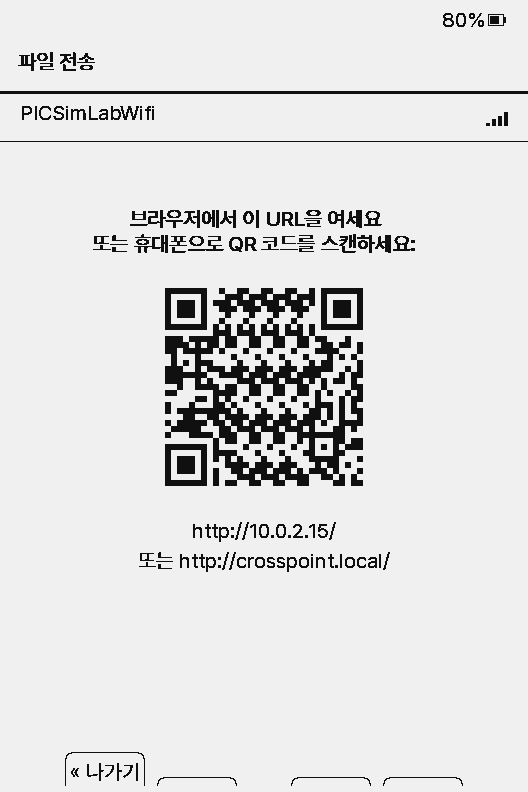
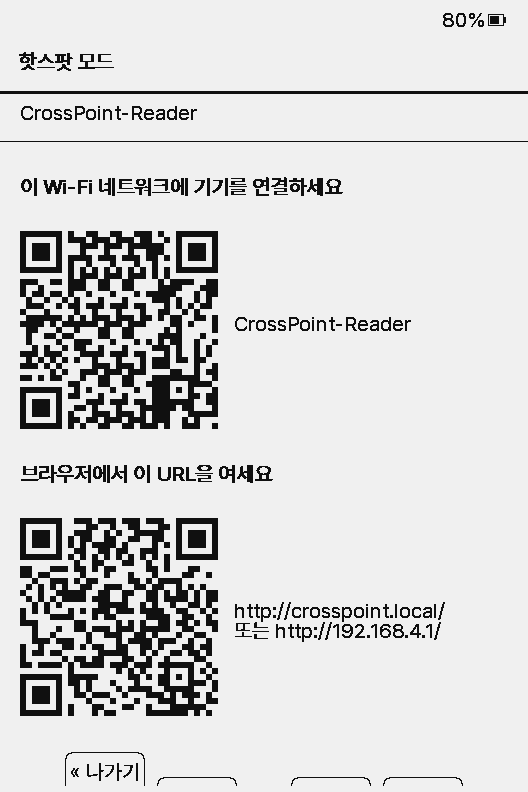
The web page can upload, download, create folders, rename, move, delete, preview images, and edit device settings. There is no password, so only use it on networks you trust. Details are on Web server.
Settings → System → Wi-Fi Networks only saves networks. The web server is started from Home → File Transfer.
Calibre wireless transfer
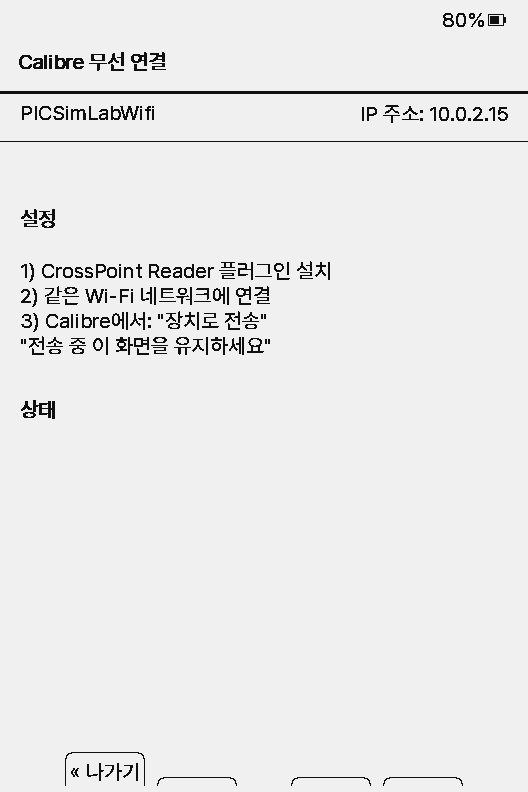
- Install the CrossPoint Reader plugin in Calibre on your computer: Preferences → Plugins → Load plugin from file, choose
crosspoint_reader.zip, then restart Calibre. - On the device, open Home → File Transfer → Calibre Wireless and choose a Wi-Fi network.
- Make sure the computer and the reader are on the same Wi-Fi. The network name and IP address are at the top of the screen.
- In Calibre, select books and click Send to device. Keep this screen open while it receives. The destination folder follows the plugin settings.
The plugin is a fork tuned for the Korean firmware, with wireless transfer, recommended conversion settings, and Korean titles, authors, and covers.
OPDS catalogs
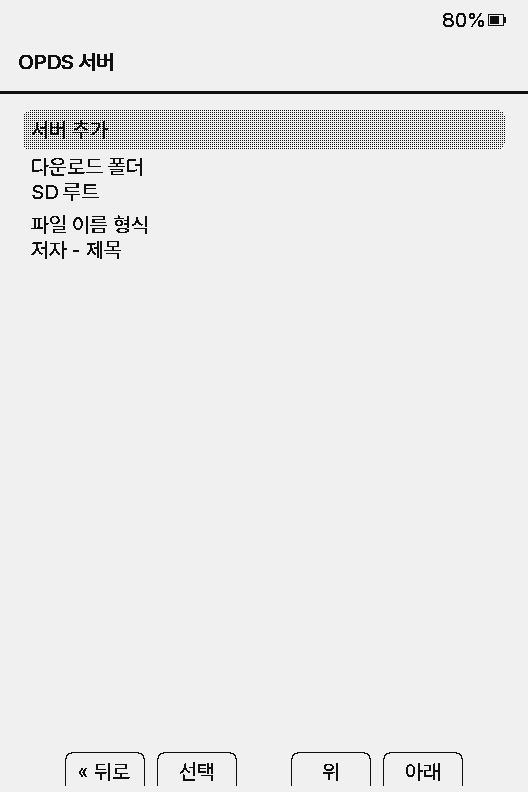
- Go to Settings → System → OPDS Servers → Add Server and enter a name and URL (plus username and password if needed). You can also add servers from the web server page.
- For a Calibre content server, add
/opdsto the end of the URL. - Once a server is added, OPDS Browser appears on Home. Browse and download books directly from there.
- The download folder (default: SD root) and file name format (Author - Title / Title - Author / Title) are on the same screen.
Screenshots
- Press Power and the side Next (down) button together, or choose Take screenshot in the reader menu.
- In a book, files go to
/screenshots/book title/with chapter, page, and progress in the name (e.g.Title_ch3_p12_40pct_….bmp). - Outside a book they are saved as
/screenshots/screenshot-….bmp. - Open a BMP from Browse files to view it on the device.