MicroSlate Korean
Installing MicroSlate Korean, which turns the X4 into a dedicated writing device for a Bluetooth keyboard: Korean input, shortcuts, and switching to and from CrossPoint.
Firmware described: MicroSlate 2.1.0-ko.2 · Xteink X4
About MicroSlate
MicroSlate turns the Xteink X4 into a dedicated writing device for a Bluetooth keyboard. It is based on Josh-writes/microslate-firmware; crosspoint-reader-ko added Dubeolsik Korean input, the RIDIBatang font and a Korean UI. Notes are saved as text files on the SD card.
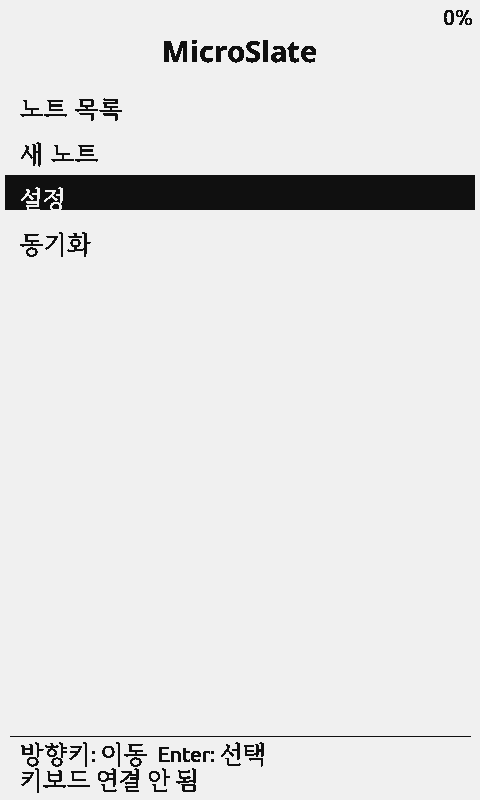
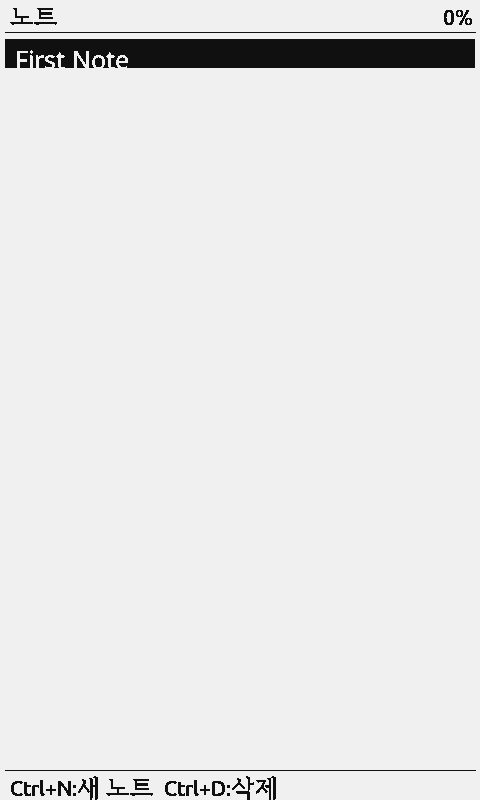
- Three writing modes: scroll, typewriter (current line only) and pages (redraws only on page turns)
- Auto-save after 10 seconds idle, every 60 seconds while typing, and at paragraph breaks; every exit saves too
- Find (Ctrl+F), selection, copy, cut and paste, word count
- Remembers up to 4 keyboards and reconnects on start
- Wi-Fi backup to a PC, dark mode, display orientation
Install
| Method | File | When | Device settings |
|---|---|---|---|
| Dual boot | dualboot-ko-<version>.bin | First install, with CrossPoint next to it | Reset |
| MicroSlate only | microslate-<version>-app.bin | Update MicroSlate on a dual-boot device | Kept |
| MicroSlate alone | microslate-<version>.bin | MicroSlate without CrossPoint | Reset |
With the web flasher (USB)
- Open the web flasher in Chrome or Edge and pick Xteink X4.
- Under Korean community firmware, pick an install method in MicroSlate Korean. For a first install, pick dual boot.
- Press flash and pick the device connected over USB. The dual-boot image is about 12MB, so it takes a few minutes.
- The device starts in CrossPoint. Home → Apps switches to MicroSlate.
Updating MicroSlate
When a new MicroSlate comes out, pick Add or update MicroSlate only. The flasher reads both app partitions and writes the new MicroSlate only where the old one was, leaving CrossPoint and settings alone. If the device's CrossPoint can't start MicroSlate, it stops without writing. The released Korean firmware (1.6.5-ko) can't start MicroSlate yet, so the first install has to be dual boot.
First start and keyboard
- Insert a FAT32 SD card and start MicroSlate. The main menu appears.
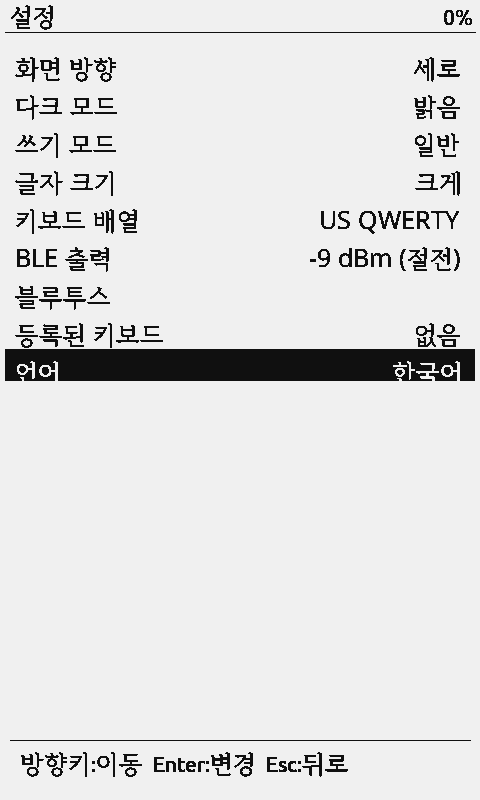
- Menus start in English. Switch to Korean in Settings → Language if you like.
- In Settings → Bluetooth, scan with the keyboard in pairing mode, pick it and press Enter.
- Back in the main menu, choose New Note and start writing.
Korean input
Hangul is composed on the device with the Dubeolsik layout. Notes use RIDIBatang (12/14/16pt), which covers all 11,172 modern Hangul syllables. In Korean mode the header shows 한 and the syllable being composed is underlined.
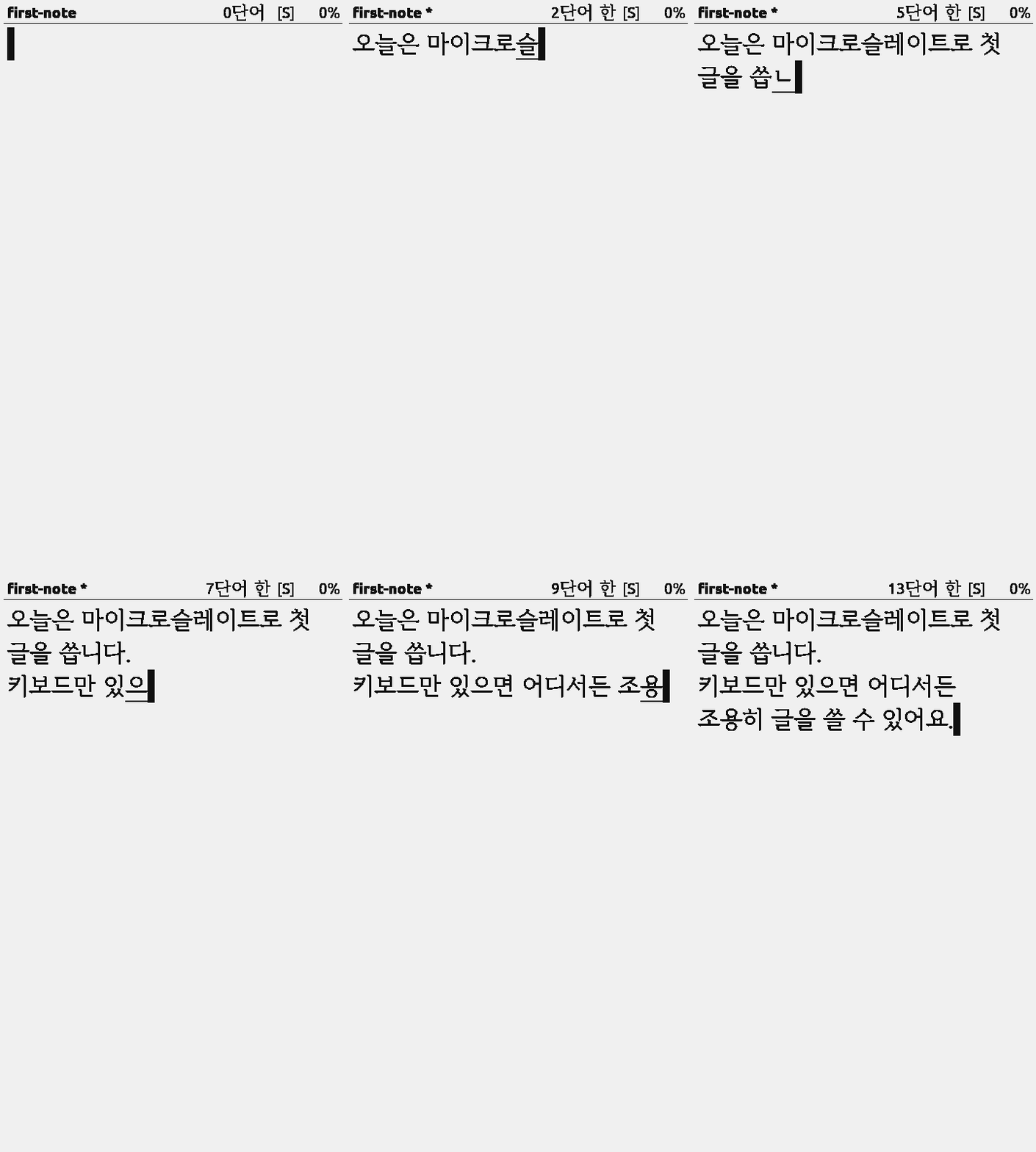
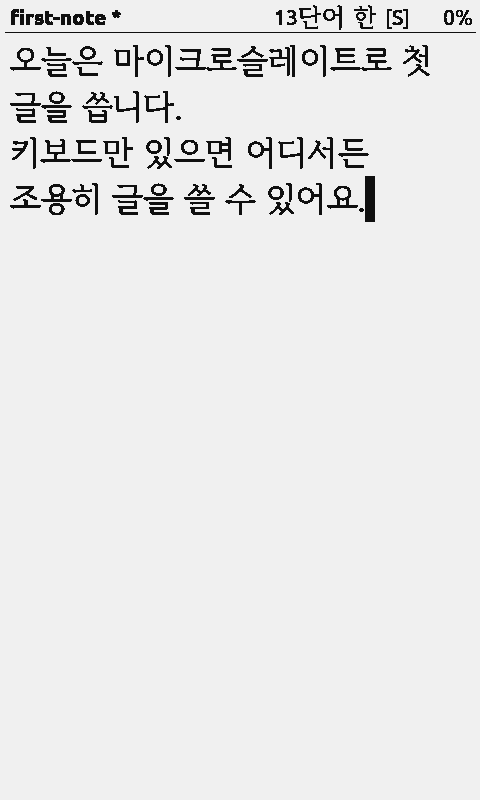
Screens are from the X4 in the x4prosim emulator. The emulator has no Bluetooth, so only the keystrokes came in over USB; the Hangul composer and editor are the real firmware.
| Key | Action |
|---|---|
| Shift+Space | Toggle Korean/English |
| Han/Yeong key, Ctrl+Space | Toggle Korean/English |
| Tap Right Alt or Right Cmd | Toggle Korean/English (US QWERTY or Korean layout) |
| Backspace | Removes one jamo while composing |
| Ctrl+K | Cycle layouts (US → Russian → German → Korean) |
Any key other than a letter or Backspace (space, punctuation, arrows, Enter) finishes the syllable. Note titles are ASCII only, since the file name comes from the title.
Shortcuts
Editor
| Key | Action |
|---|---|
| Arrows, Home/End | Move the cursor |
| Shift+arrows, Ctrl+A | Select, select all |
| Ctrl+C/X/V | Copy, cut, paste |
| Ctrl+F | Find (Enter next, Esc close) |
| Tab | Cycle writing mode (scroll → typewriter → pages) |
| Ctrl+Z | Clean mode: text only |
| Ctrl+W | Word count |
| Ctrl+S | Save now (auto-save usually covers it) |
| Ctrl+N | Rename the note |
| Esc, back button | Save and return to the list |
Note list
| Key | Action |
|---|---|
| Up/Down | Pick a note (newest saved on top) |
| Enter | Open |
| Ctrl+N | Rename |
| Ctrl+D | Delete (confirm with Enter) |
| Esc | Main menu |
The header shows the writing mode: [S] scroll, [T] typewriter, [P] pages. In page mode Ctrl+←/→ turns pages. The device buttons also move through menus and lists without a keyboard.
Switching with CrossPoint
- CrossPoint → MicroSlate: Home → Apps → MicroSlate (한글) restarts into MicroSlate. Right after install it may show as
xteink-writer-firmwareonce; MicroSlate registers its name the first time it runs. - MicroSlate → CrossPoint: choose CrossPoint in the main menu.
- Both use the same SD card, so you can write and go back to the book where you left off.
Back up to a PC
Sync in the main menu downloads every note to a PC on the same Wi-Fi. It is one-way (device → PC) and the device's server is read-only. The PC needs the sync script (Python) from the MicroSlate repository installed once. See WiFi Sync in the MicroSlate README.
Back to the Korean firmware
- In the web flasher, pick Xteink X4 and press Flash on the Korean firmware at the top.
- The flasher writes the Korean partition table and app. MicroSlate is removed; books and notes on the SD card stay.
More
- MicroSlate README: every shortcut, setting and keyboard option
- Release notes: changes and image files per version
- Report a problem: GitHub issues