CrossTwins
How the community firmware CrossTwins differs from this site's Korean firmware, and how to install it and switch back.
Describes CrossTwins 2.0.0 · Xteink X4 and X3
About CrossTwins
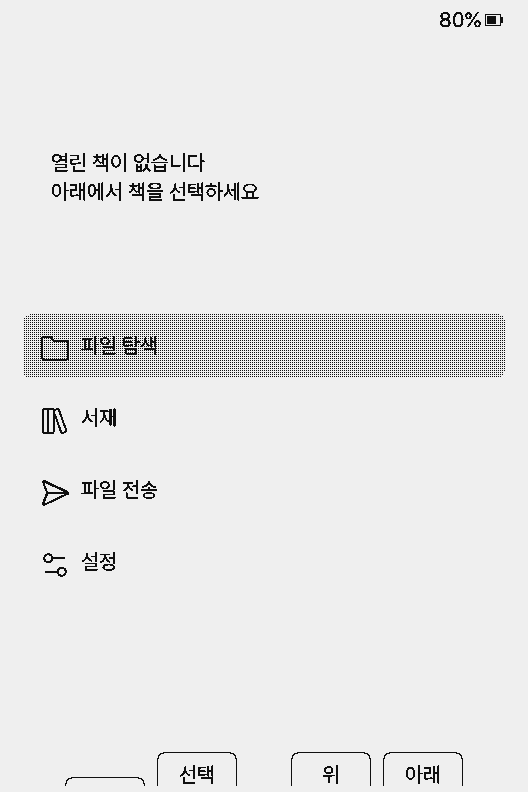
CrossTwins is made by a community developer (meat-holic). From 2.0.0 it puts CrossTwins features such as the Korean menus, user body fonts and recent-book progress on the home screen on top of upstream CrossPoint 2.0.0 final. It is not a port of the Korean firmware's source, so it is used in much the same way but the menus and fonts work differently. It boots with its own CrossTwins logo.
Differences from the Korean firmware
| Korean firmware | CrossTwins | |
|---|---|---|
| Made by | crosspoint-reader-ko (this site) | Community developer meat-holic |
| Code | Korean fork with upstream 2.0.0 merged in | CrossTwins features merged onto upstream 2.0.0 final |
| Book font | Pretendard 10pt built in; 14pt and other fonts from the SD card | Pretendard 10pt built in; other fonts and sizes from the SD card |
| SD card font format | .epdfont (one file per size, made with the font converter) | .cpfont (upstream format; the font converter's .cpfont tab makes it too) |
| Menu languages | Korean, English | Korean, English (Pretendard menu font) |
| Line spacing | Seven steps from 0% to +75% | 110, 120, 130, 145, 160, 175% |
| Web flasher devices | X4, X3, X4 Pro, X4 Classic, Sticky, Paper Mono | X4, X3 (get images for other devices from the releases) |
| App partitions | Two 0x6A0000 slots; the flasher writes the partition table too | Two 0x640000 slots like stock; runs on the device's current layout |
| OTA updates | crosspoint-reader-ko releases | meat-holic/CrossTwins releases (per-device images) |
| Version format | 2.0.0-ko.N | 2.0.0 |
CrossTwins 2.0 highlights line spacing steps taken early from upstream PR #4174, recent-book progress and chapter on the home screen, two-line titles in the browser, home and library, natural sorting of file names (rev.1), TXT reading progress, an image slideshow, and an MS-DOS theme alongside Lyra. The upstream 2.0 reader menu (clippings, auto page turn, page QR, progress sync and more) is included too. The table follows CrossTwins v2.0.0 source and release and Korean firmware 2.0.0-ko.0.
Install and update
With the web flasher (USB)
- Open the web flasher in Chrome or Edge and pick X4 or X3.
- Further down, press Flash CrossTwins and choose the device connected over USB.
- When it finishes, the device restarts into CrossTwins.
Later updates
Settings → System → Check for updates looks for the image for your device in the latest meat-holic/CrossTwins release. 2.0 candidates before 2.0.0-rc2.rev.2 looked at upstream CrossPoint releases instead, so if you are on one of those, flash once more from the web flasher. The web flasher picks up the latest full release when this site is redeployed.
Korean fonts
From 2.0 a Pretendard 10pt book font is built in, so Korean books open without adding a font. For another typeface or larger text, add a .cpfont and pick it on the Font tab of Settings → Reader → Text Settings. Size, line spacing and margins are on the Size and Layout tabs of the same screen.
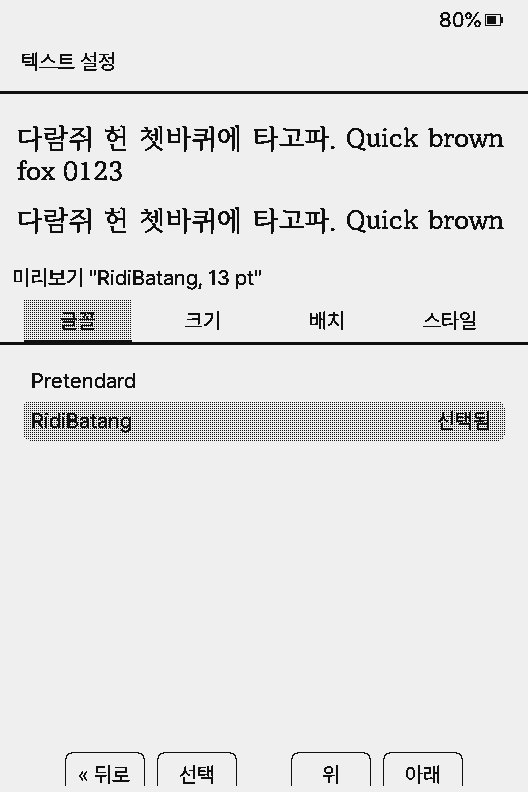
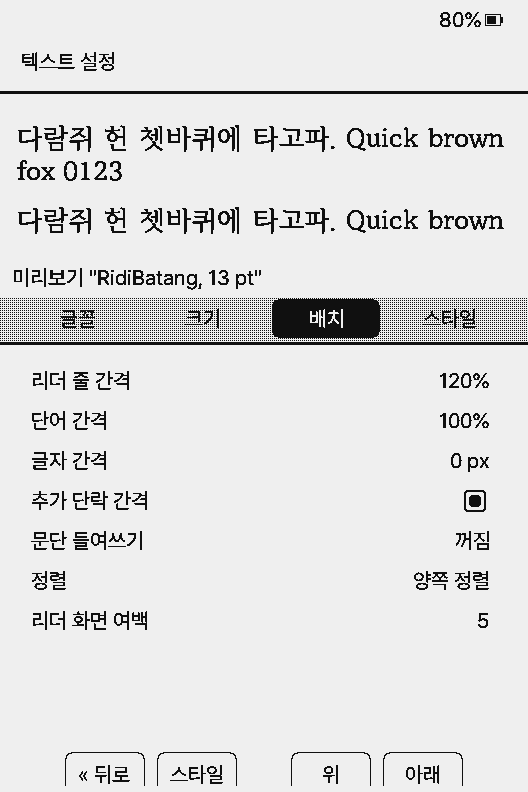
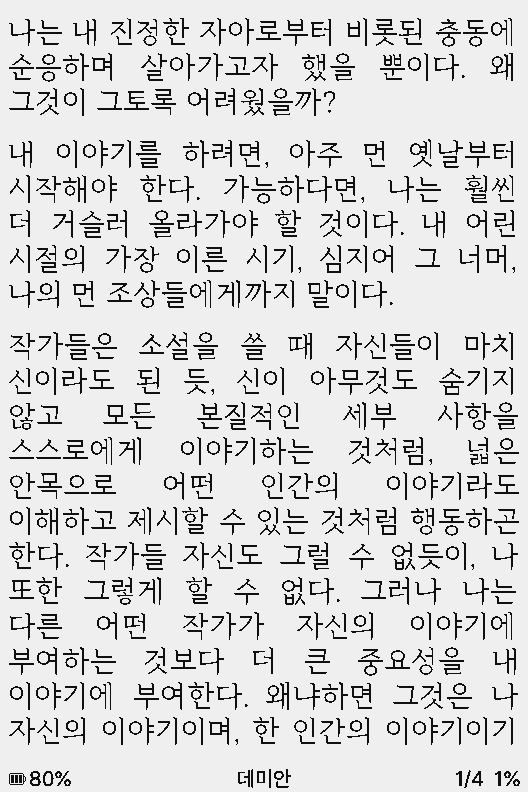
The book on screen is Demian in a public-domain Korean translation from Wikisource, made into an EPUB by EPUBGUIDE.NET (CC BY-NC-SA 4.0). RIDIBatang comes from the SD card zip attached to the CrossTwins 2.0.0-rc2 release, unpacked into /.fonts.
- Download on the device: connect to Wi-Fi and pick a font in Settings → Reader → Manage Fonts.
- Over file transfer: start file transfer on the device, open its web page in a browser, and upload
.cpfontfiles on the Fonts tab. - With the SD card: copy font folders from the crosspoint-fonts repository, or
.cpfontfiles made with the font converter, to/.fontsor/fonts, for example/.fonts/FontName/FontName_14.cpfont.
.epdfont files (such as KoPub Batang) don't work in CrossTwins, and CrossTwins' .cpfont files don't work in the Korean firmware. If you switch between them, keep fonts for each. The first 2.0 candidate (rc.ct.0) listed online font downloads as not working on the X3 and X4; if a download fails, use file transfer or the SD card.Back to the Korean firmware
- In the web flasher, pick your device and press Flash on the Korean firmware at the top.
- The flasher writes the Korean firmware's partition table and app together. Books and
.epdfontfonts on the SD card work again as before.
More
For settings and features, see the CrossTwins documentation.
- Releases: changes and test coverage per version
- SD card fonts: installing
.cpfontand the folder layout - Report a problem: GitHub issues