CrossPoint Bible
Install the Bible firmware and put Korean (or any other language) on the SD card.
Firmware CrossPoint Bible 0.2.3 · Xteink X4 and X3 only
About
CrossPoint without the network, OTA, library and EPUB/TXT reader, and with book/chapter/verse navigation, large text and bookmarks instead. It runs on the Xteink X4 and X3 only.
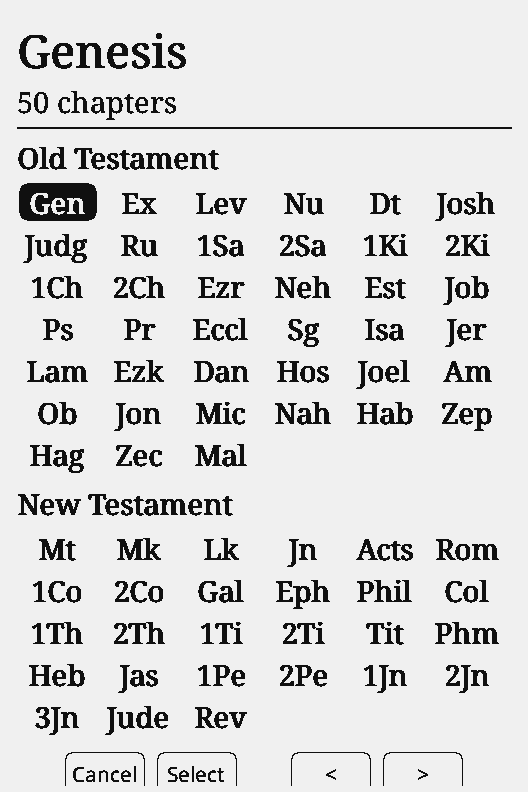
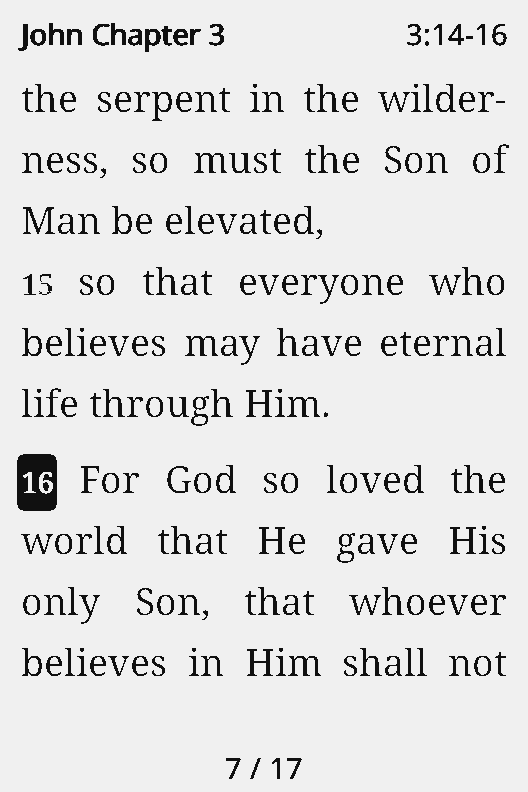
Install
With the web flasher (USB)
- Open the web flasher in Chrome or Edge and pick X4 or X3.
- Press Flash CrossPoint Bible and choose the device connected over USB.
- When it finishes the device restarts into the English Bible.
From the SD card
- Download
crosspoint-bible-<version>-x4-x3.binwith the web flasher's download button or from GitHub Releases. - Copy it to the SD card and put the card in the device.
- In CrossPoint (the Korean firmware too), pick it in Settings → System → SD Card Firmware Update.
.bin to the SD card and use Settings → System → SD Card Firmware Update in the Bible firmware.Files to download
The firmware carries only the English Bible (Open Translation Bible). Other languages come from GitHub Releases as bundles (zip). For Korean, -ko.zip is all you need.
| File | Contents | Size |
|---|---|---|
| crosspoint-bible-<version>-ko.zip | Korean: 개역한글 (1952/1961), 열린 성경, text fonts KoPub Batang and RIDIBatang, menu font Pretendard | 6.5 MB |
| crosspoint-bible-<version>-<code>.zip | One other language (ja Japanese, zh Chinese, es Spanish, de German and 19 more) | 1.5–5.6 MB |
| crosspoint-bible-<version>-all.zip | Every language, English included | 55 MB |
| crosspoint-bible-<version>-x4-x3.bin | The firmware. Not needed if you used the web flasher | 3.9 MB |
| epub2cpb.py | Converts a Bible EPUB or JSON you own into a pack (.cpb) |
-en.zip is only for keeping a copy of the built-in English Bible on the card.
SD card layout
- Unzip the bundle. It contains a
biblefolder. - Copy the
biblefolder to the root of the SD card. Don't create or rename folders. - Further language bundles go in the same way and merge into the same
biblefolder. - Put the card back in the device.
/bible/bible/lang, is not found. If the language list doesn't show your language, check the folder first.Switch language
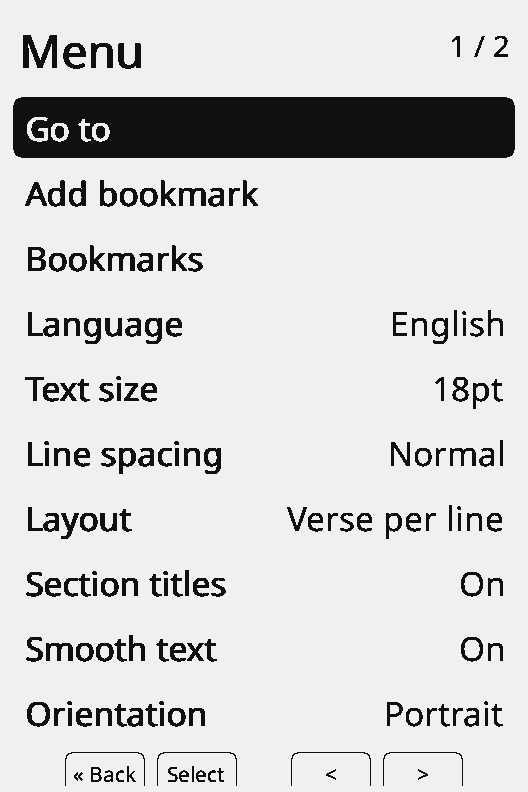
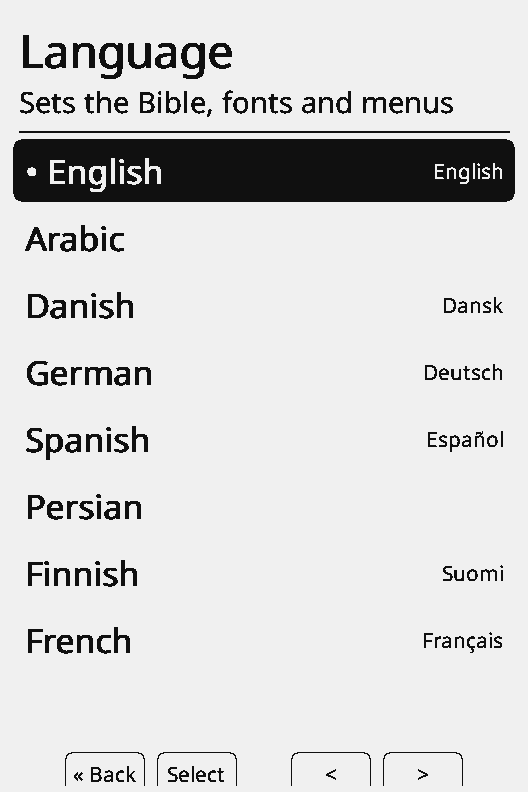
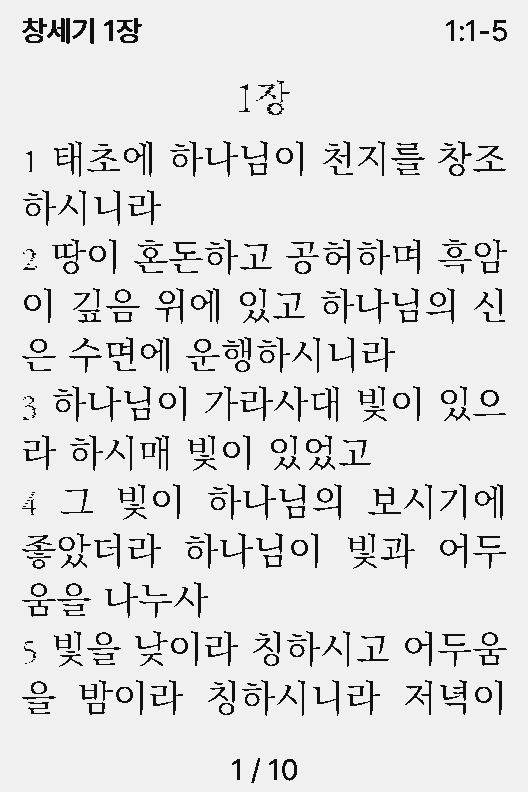
- Press Back to open the menu.
- In Language, pick the language. Menus, Bible and fonts switch together.
- When a language has more than one Bible or font, the menu shows Bible and Font to choose (Korean: 개역한글 or 열린 성경, KoPub Batang or RIDIBatang).
Settings → System → Language does the same. The reading position and bookmarks carry over when you switch.
More
Go to, bookmarks, text size, line spacing, layout, sleep screen and the other settings are described with screenshots in the CrossPoint Bible documentation.
- Use: reading, Go to, menu and view settings, bookmarks
- Your own Bible: convert one you own with
epub2cpb.pyand put it in/bible/lang/<code>/(personal use only) - Report a problem: GitHub issues