File Transfer & Web Server
Upload and organize books on the device's SD card from a browser on your computer or phone.
Open File Transfer
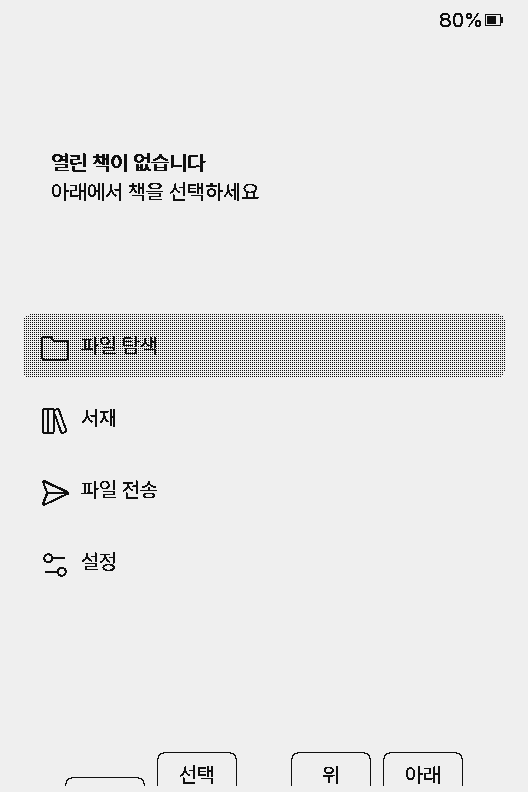
On the home screen, choose File Transfer (파일 전송). A screen with the connection modes opens.
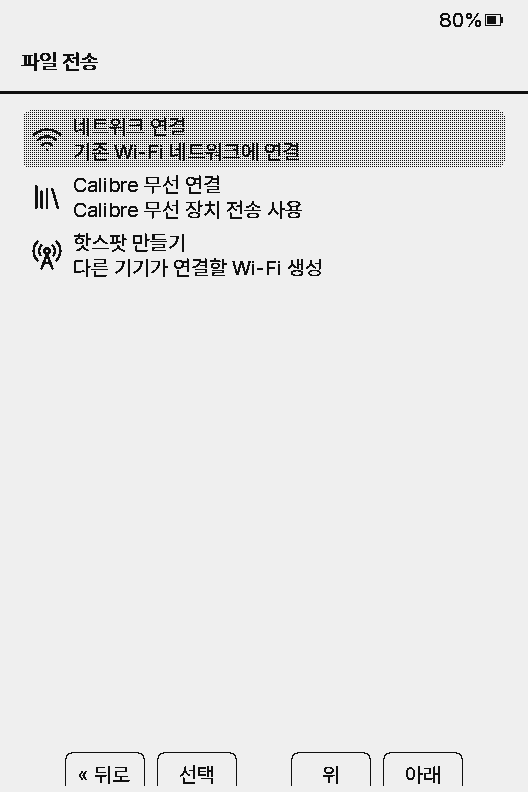
Four modes
Settings → System → Wi-Fi Networks only saves networks. The web server runs only from File Transfer.
USB Drive appears only on the X4 Pro, X4 Classic and Paper Mono. The screen above is an X3, so it shows three modes.
Join a Network
- 1Choose Join a Network (네트워크 연결) and the device scans for Wi-Fi.
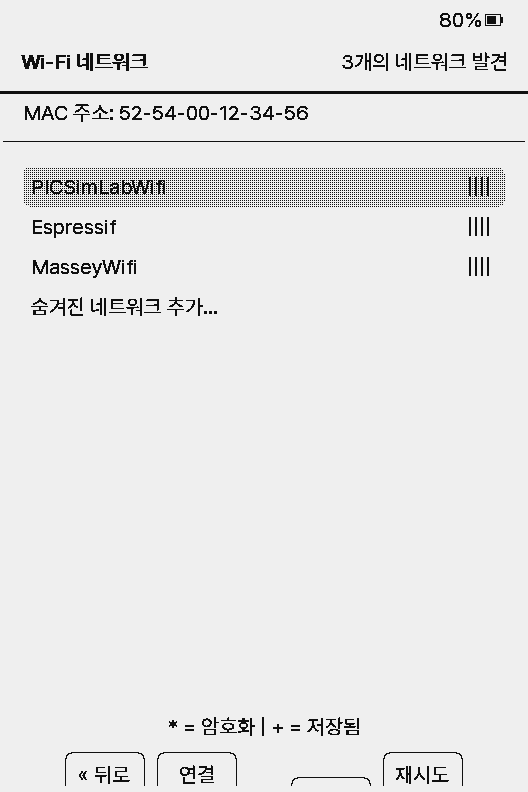
- 2Move through the list with the side buttons and press Connect (연결). On touch devices, tap a network.
*marks a password-protected network,+a saved one. Add a network that is not listed with Add hidden network...; Retry (재시도) scans again. - 3Enter the password with the on-screen keyboard if needed. Networks you have joined connect right away next time.
- 4Once connected, the screen shows an address and a QR code. Open the address in a browser on a computer or phone on the same Wi-Fi, or scan the QR code.
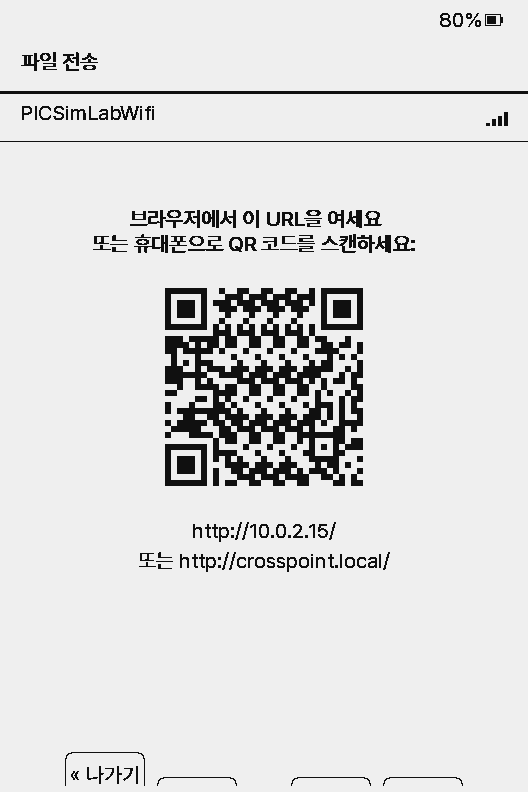
If http://crosspoint.local/ does not open (some Android phones), use the IP address.
Create Hotspot
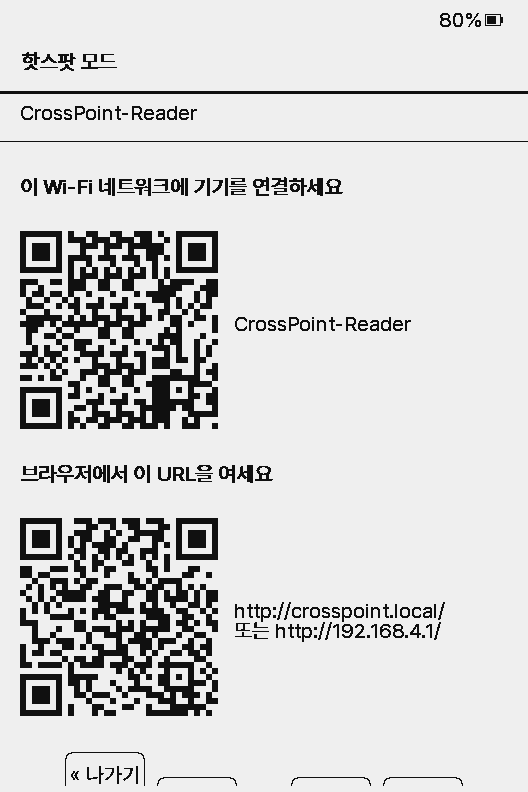
- 1Choose Create Hotspot (핫스팟 만들기) and the device opens a Wi-Fi network named
CrossPoint-Reader. It has no password. - 2Join that network from your phone or computer. Scanning the top QR code joins it directly.
- 3Open
http://crosspoint.local/orhttp://192.168.4.1/in a browser, or scan the bottom QR code.
While joined to the hotspot, your phone or computer may have no internet access.
Calibre Wireless
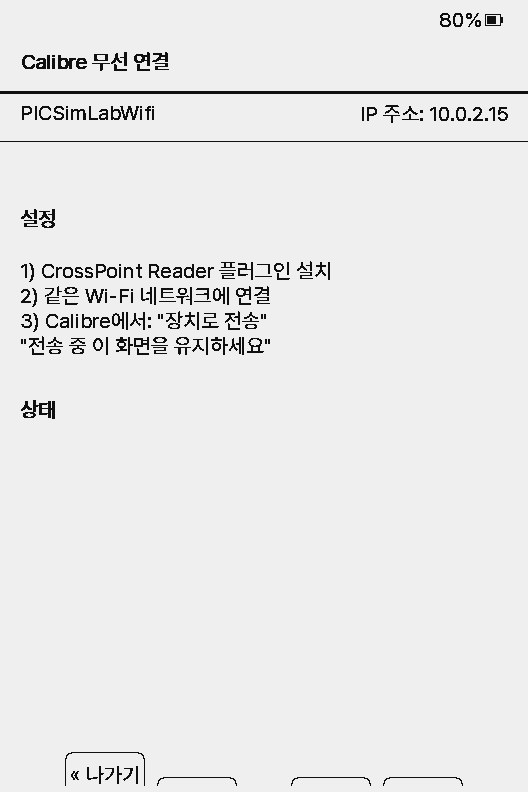
- 1Install the CrossPoint Reader plugin in Calibre on your computer. See the Files & Calibre guide for how.
- 2On the device, choose Calibre Wireless (Calibre 무선 연결) and pick a Wi-Fi network. It must be the same network as the computer.
- 3In Calibre, select books and use Send to device. Leave the device on this screen while it transfers.
USB Drive
X4 Pro · X4 Classic · Paper Mono- 1Connect the device to your computer with a USB cable and choose USB Drive (USB 드라이브).
- 2The SD card shows up on the computer as an external drive. Copy and delete files as usual.
- 3Eject the drive on the computer or unplug the cable, and the device returns to the home screen.
What the web interface does
The page has Home, File Manager and Settings at the top.
Home
Device status: serial number, firmware version, Wi-Fi status, IP address and free memory.
Settings
Change every device setting from the browser, including values the device screen does not show: OPDS download folder and file name format, frontlight brightness and color temperature, KOReader account, and clock details.
Saved Wi-Fi networks and OPDS servers are added and removed here too.
File Manager
- Upload: upload several files at once, or drag them onto the window. Files that fail can be sent again with Retry.
- Optimize EPUB: before uploading, the browser shrinks the images inside an EPUB to fit the device screen.
- New Folder: create a folder.
- Each file can be renamed, moved to another folder or downloaded. Click an image file to preview it.
- Delete with the trash icon, or select several items and use Delete Selected. A folder must be empty to be deleted, and deleted files cannot be recovered.
Upload fonts (.epdfont) with the File Manager into the /fonts folder. See the Korean fonts page.
WebDAV
While the web server runs, WebDAV clients such as the macOS Finder, Windows File Explorer or Cyberduck can mount the same address as a network drive.
For developers: ports and API
The HTTP API behind the web interface can be called directly.
Ports
| 80 | HTTP | Web interface, API, WebDAV |
| 81 | WebSocket | WebSocket upload |
| 8134 | UDP | Discovery. Replies to hello |
| crosspoint.local | mDNS | mDNS host name (no service record) |
Endpoints
| GET | /api/status | Device status |
| GET | /api/files | Folder listing (?path=) |
| GET | /download | Download a file (?path=) |
| POST | /upload | Multipart upload (?path=) |
| POST | /mkdir | Create a folder |
| POST | /rename | Rename |
| POST | /move | Move |
| POST | /delete | Delete |
| GET POST | /api/settings | Read and write settings |
| GET POST | /api/wifi | List and add saved Wi-Fi (delete with /api/wifi/delete) |
| GET POST | /api/opds | List and add OPDS servers (delete with /api/opds/delete) |
There is no authentication. Range requests and resuming are not supported, and an interrupted upload deletes the partial file.
Troubleshooting
The page does not open
- Make sure your phone or computer is on the same Wi-Fi as the device. For the hotspot, it must be joined to
CrossPoint-Reader. - The address starts with
http://, nothttps. - If
crosspoint.localdoes not work, use the IP address on the screen. - Turn off VPNs, and avoid guest Wi-Fi that blocks devices from talking to each other.
Uploads fail or stop
- Stay close to the router and keep the device on this screen.
- Check the free space on the SD card.
- Send failed files again with Retry. An interrupted file is deleted, so it uploads from the start.
Security
- The web server has no authentication. Anyone on the same network can see and delete files.
- Use it only on networks you trust, such as your home network.
- Press Exit (나가기) on the File Transfer screen to turn off the web server and Wi-Fi.