Basics
Home, finding books, reading, and the reader menu, in the order you meet them on the device.
Firmware 1.6.5-ko.11 · screens from the X3 (Korean UI)
New in 1.6.5
If you are coming from 1.5.x, this is what changed. The full list is in the release notes.
- Library: every book on the SD card, by recent, title, or author, with search.
- Night mode: inverts the whole screen. Toggle it straight from the reader menu.
- Word spacing (50–200%), character spacing (-2 to +2 px), and an extra wide line spacing (1.60×).
- Reader menu style: choose a small toolbar over the page instead of the full-screen list.
- Clock (X3): pick a time zone from a city list; daylight saving is handled automatically. Settings → System → Clock.
- Easier footnote jumps and returns; rename bookmarks and files on the device.
- New Transparent sleep screen that lays a PNG/BMP over the page you were reading.
- New About screen and a keyboard layout picker for the on-screen keyboard.
- Dictionaries read synonyms (.syn) and HTML definitions; EPUB tables and numbered lists render properly.
- Support for X4 Pro, X4 Classic, Sticky, and Paper Mono. Touch, frontlight, and USB drive menus only appear on those devices.
- Bluetooth page turner (ko.4): turn pages with a Bluetooth remote and map an action to each button. Settings → System → Bluetooth Page Turner.
- The default book font (ko.4) is now Pretendard, Hanja included. To read in KoPub Batang, download KoPubBatang-14.epdfont, put it in
/fontson the SD card, and pick it. - Sleep images (ko.6): Custom and Transparent share the same images and selection, PNG wallpapers work, and Select Sleep Screens previews look exactly like the sleep screen.
ko.1 and ko.2: touch support on the Korean-only screens (fonts, sleep screen picker, TXT menu), one-line ellipsis for book titles on Home, numeric file name sorting (1.2 before 1.10), and two-line long names in the file browser and the next-book prompt.
Devices & buttons
The Korean firmware is built for the six devices below. Settings only list hardware the device actually has, so menus differ slightly between devices. Specs are on the CrossPoint devices page.
| Device | Chip | Touch | Frontlight | USB drive | Clock / tilt sensor |
|---|---|---|---|---|---|
| X4 | ESP32-C3 | - | - | - | None |
| X3 | ESP32-C3 | - | - | - | Clock, tilt page turn |
| X4 Pro | ESP32-S3 | Yes | Yes (with warmth) | Yes | Depends on hardware |
| X4 Classic | ESP32-S3 | - | - | Yes | Depends on hardware |
| Sticky (reTerminal) | ESP32-S3 | Yes | - | - | Tilt page turn; clock depends on hardware |
| Paper Mono | ESP32-S3 | Yes | Yes | Yes | Depends on hardware |
- The X3 and X4 share one firmware file. It detects the device at boot and shows the clock and tilt menus only on the X3.
- The Cover Grid theme needs extra memory (PSRAM) and only appears on S3 devices, not on the X3 or X4.
X3 and X4 buttons
Button devices use four front buttons and two side buttons. The hint bar at the bottom of the screen (e.g. « Back / Select / Up / Down) shows what the four front buttons do right now. In lists, the side buttons also move up and down.
| Location | X3 | X4 |
|---|---|---|
| Front, bottom | Back, Confirm, Left, Right | Back, Confirm, Left, Right |
| Sides | Left side: Previous / right side: Next | Right side: Power, Previous, Next, USB-C |
| Other | Top: Reset, microSD, Power | Left side: Reset, microSD |
| Back | Pogo-pin charging, NFC, magnets | Magnetic mount |
On touch devices (X4 Pro, Sticky, Paper Mono), tap the middle of the screen for the menu, swipe or tap the sides to turn pages, and swipe up from the bottom to go Home.
You can reassign the front buttons in Settings → Controls → Remap Front Buttons.
Power
- On and sleep: hold the power button for more than half a second. The device shows your sleep screen when it sleeps.
- Auto sleep: after 10 minutes without input. Change it in Settings → System → Time to Sleep.
- Resume: if you were reading when it slept, the book reopens at power on. Hold Back while powering on to go to Home instead.
- Restart: if the device freezes, press and release the reset button, then hold power.
- Short power press: does nothing by default. Set it to sleep, page turn, screen refresh, and more in Settings → Controls → Short Power Button Click.
Home
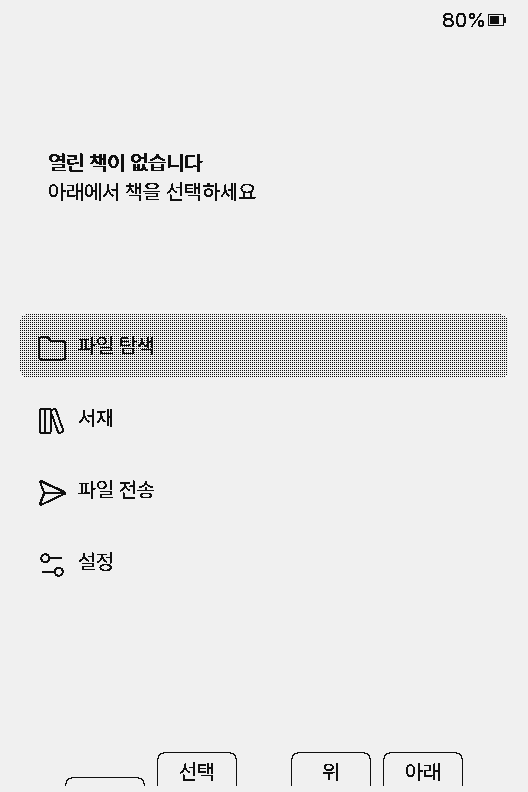
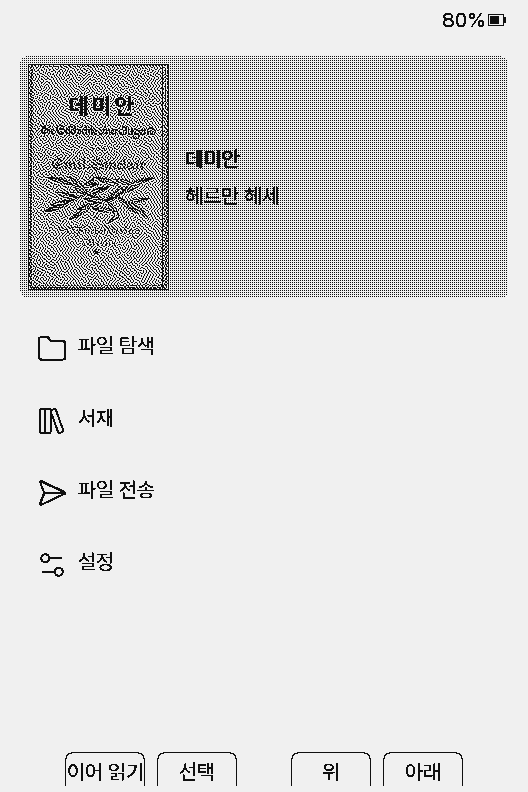
Home appears at power on. The menu is Browse files → Library → File Transfer → Settings. Once you add an OPDS server, OPDS Browser appears before File Transfer.
After you open a book, a cover tile appears at the top and the cursor starts on it. Press Confirm to continue where you left off.
The hint bar at the bottom shows what the four front buttons do. It changes from screen to screen, so check it when you are unsure.
Change the look of Home with the UI theme (Themes).
Finding books
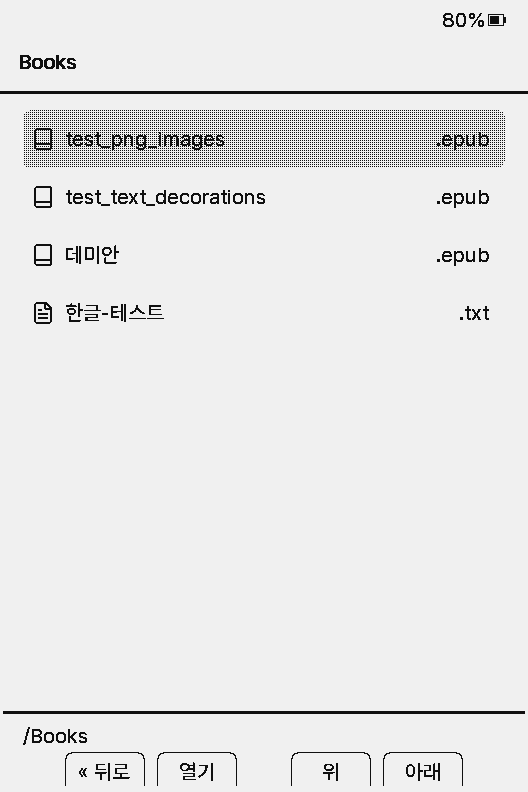
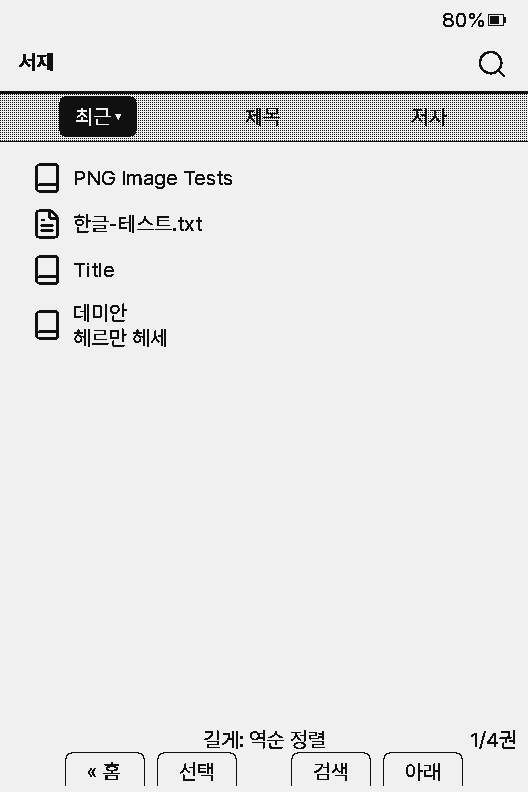
Browse files shows the SD card folders as they are. Confirm opens, Back goes up a folder. Hold Confirm for Open, Delete, and Rename.
Library collects books from anywhere on the SD card into Recent, Title, and Author tabs. It takes a moment to build the list the first time.
Supported formats: EPUB, XTC/XTCH, TXT, MD, BMP, PNG.
Details are in Files & Library.
Reading
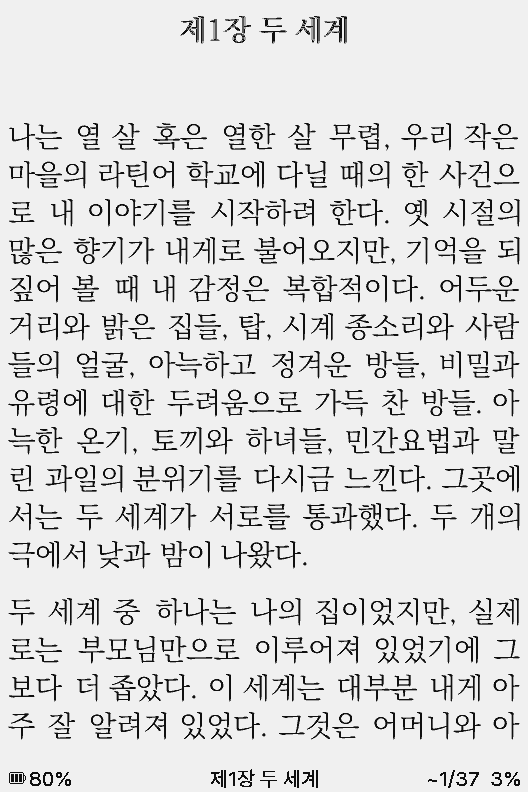
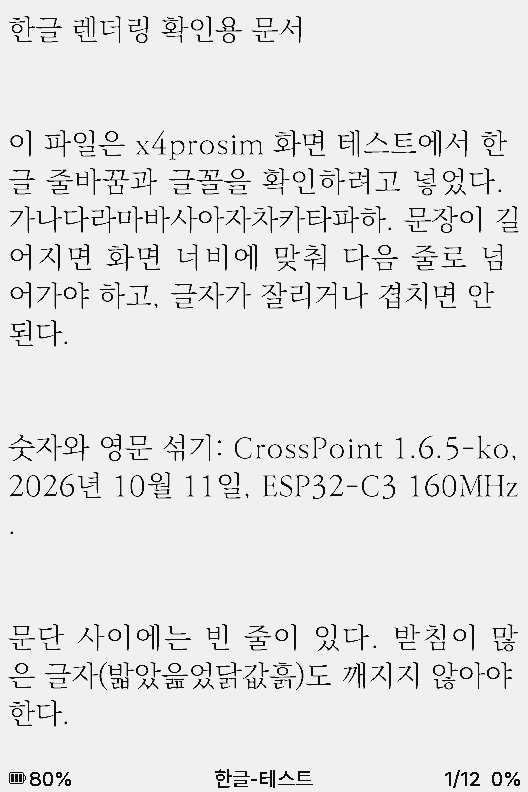
When a book is open the buttons switch to reading controls. These are the defaults; the settings in parentheses (Settings → Controls) change them.
- Previous / next page
- Side Previous/Next, front Left/Right (Side Button Layout)
- Reader menu
- Confirm
- Go Home
- Short Back
- Go to file browser
- Long Back (turning on Short Back to File Browser swaps short and long)
- Skip chapter
- Off by default. Set Long-Press Button Behavior to Chapter Skip, then hold a page button
- Hold Confirm
- Off by default. Pick Bookmark, Dictionary, or KOSync in Long-Press Menu
- Screenshot
- Power + side Next together
While viewing a footnote, Back returns to where you were in the text.
The book on screen is Demian in a public-domain Korean translation from Wikisource, made into an EPUB by EPUBGUIDE.NET (CC BY-NC-SA 4.0). The text is set in KoPub Batang.
EPUB and TXT

EPUBs keep the book's own styles and images. If image-heavy books turn pages slowly, set Settings → Reader → Images to Placeholder or Suppress.
TXT files have no chapters, so the menu is shorter, and there is a separate setting to skip several pages by holding a page button.
The bottom line shows battery, title, page, and progress. Choose what appears in Settings → Reader → Customise Status Bar.
At the end of a book, the End of book screen lets you go Home or open the next book in the same folder.
GIF, SVG, and WebP images are not shown. EPUBs with very large covers open faster after a pass through the EPUB to XTC Converter.
Languages
The device menus come in Korean and English only (Settings → System → Language). Book text in any language shows as long as the font has the characters. For characters missing from the built-in fonts, such as Chinese characters or kana, add a font that contains them.
Reader menu
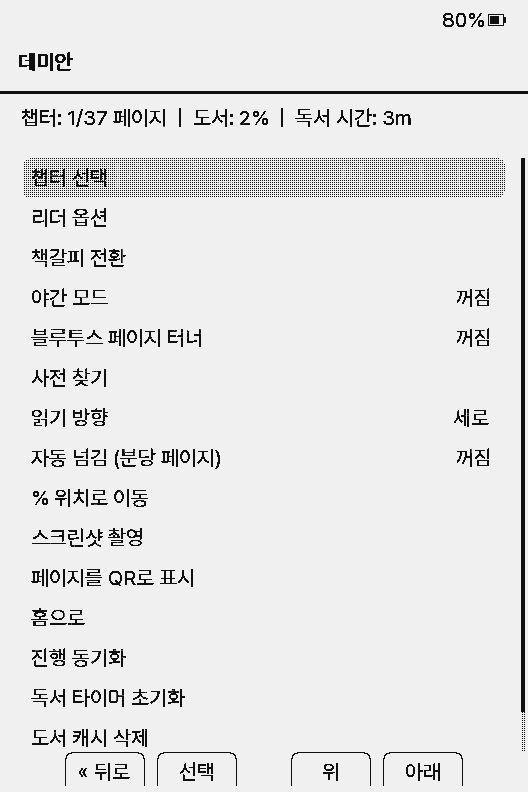
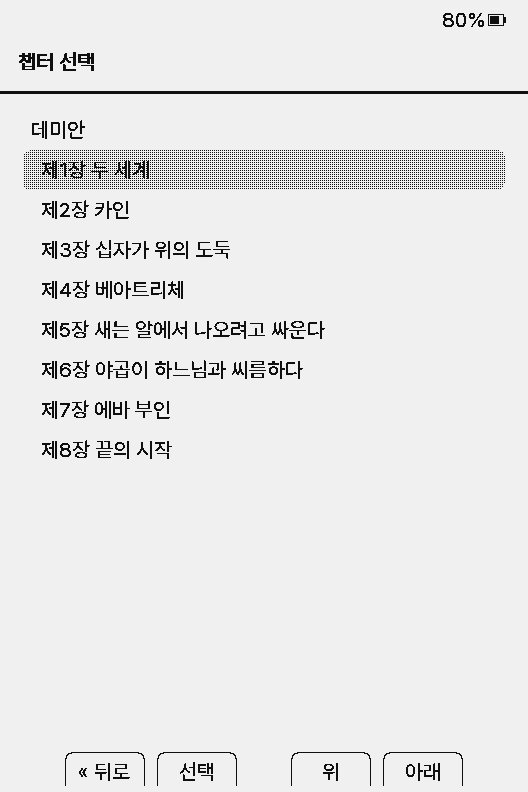
Press Confirm while reading to open the reader menu. The top line shows chapter and book progress and this book's reading time. Every item is listed under Settings → Reader menu.
Select Chapter is the first item. Move with up/down, Confirm to jump, Back to cancel.
If KOReader sync is set up, Sync Progress in the menu matches your position with other devices (KOReader sync).
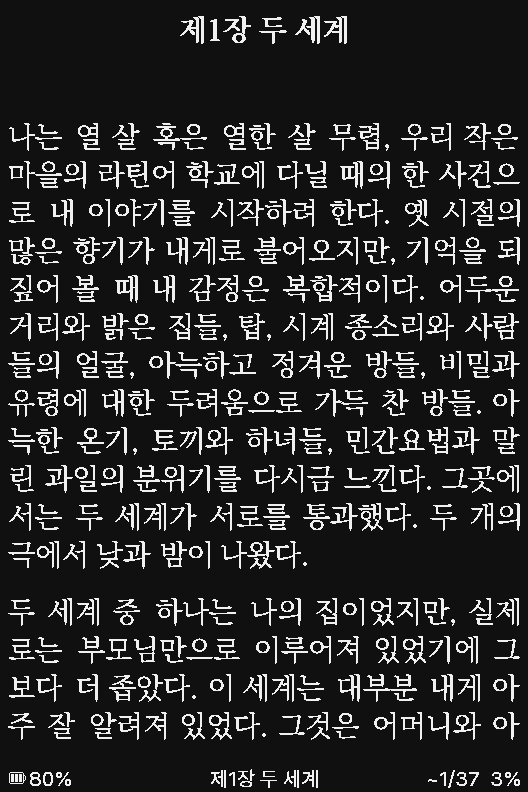
Night mode inverts the screen to white text on black. Images keep their original tones. You can also turn it on in Settings → Display → Night Mode.
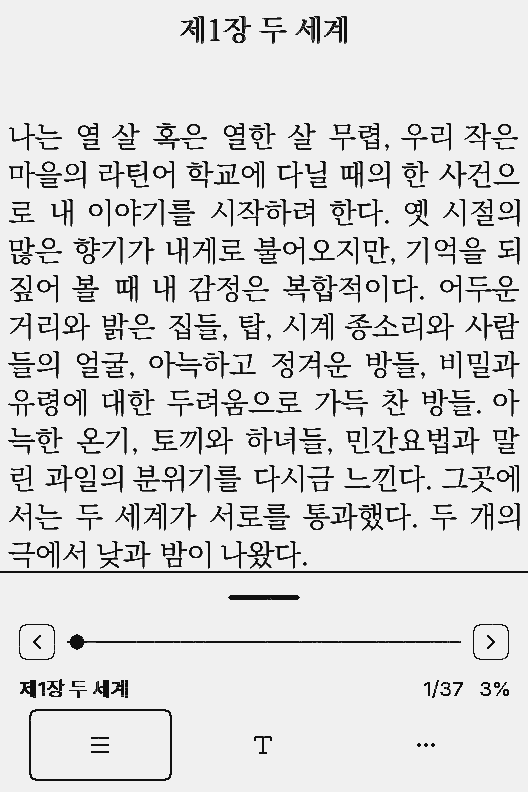
Set Settings → Reader → Reader Menu Style to Toolbar and the menu becomes a small bar at the bottom of the page: a slider to move through the book, plus Contents, Text (font and spacing), and More buttons.