Customize
Sleep screens, themes, fonts, KOReader sync, and the reading timer.
Firmware 2.0.0-ko.1 · screens from the X3 (Korean UI)
Sleep screen
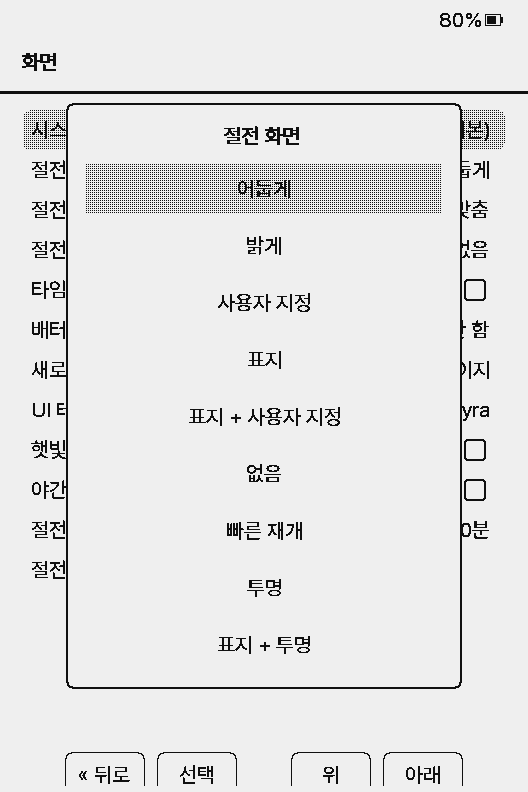
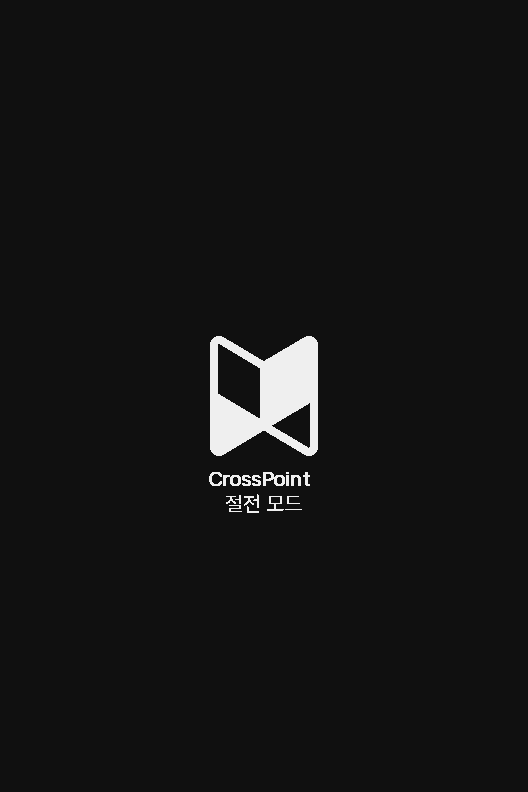
Choose it in Settings → Display → Sleep Screen. It appears when you hold the power button or the device sleeps on its own.
- Dark (default)
- CrossPoint logo on black
- Light
- Logo on white
- Custom
- A BMP/PNG image from the SD card. Falls back to Dark
- Cover
- The current book's cover. Falls back to Dark without a book
- Cover + Custom
- The cover if you were reading, Custom otherwise
- None
- Blank screen
- Quick Resume
- Leaves the page on screen with a moon icon, so you can pick up instantly
- Transparent
- Lays a sleep image over the page you were reading; the page shows through transparent pixels
- Cover + Transparent
- Lays the sleep image over the last book's cover. Without a cover it acts like Transparent

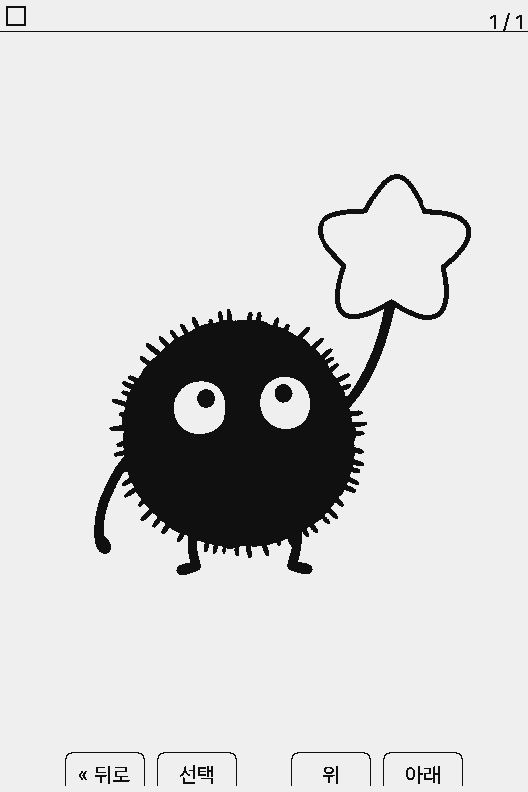
Sleep images: create a /.sleep/ (or /sleep/) folder on the SD card and add BMPs or PNGs; one is picked at random each time. Custom and Transparent use the same images; the mode only decides how one is drawn (Custom replaces the screen, Transparent lays it over the page). Upstream's /.sleep-overlay/ and /sleep-overlay/ folders join the same list. A single root /sleep.bmp or /sleep.png (Custom) or /sleep-overlay.bmp or /sleep-overlay.png (Transparent) takes priority over the folders. The example screen is a single 480×800 grayscale BMP in /.sleep/ with Sleep Screen Cover Filter set to Contrast.
In Select Sleep Screens (Settings → Display), preview the images one by one and tick the ones to use. Previews are drawn exactly as the sleep screen draws them, and one selection is shared by every mode. If none are ticked, all are used. On touch devices, tap the right or left of the image to page and tap the Selected strip at the bottom to tick.
In Transparent, the page shows only through transparent PNG pixels (or white pixels in a plain BMP). A fully opaque image covers the whole page.
To use Quick Resume only for automatic sleep, turn on Quick Resume on Timeout. Adjust covers with Cover Mode (Fit/Crop) and Cover Filter (None/Contrast/Inverted).
Themes
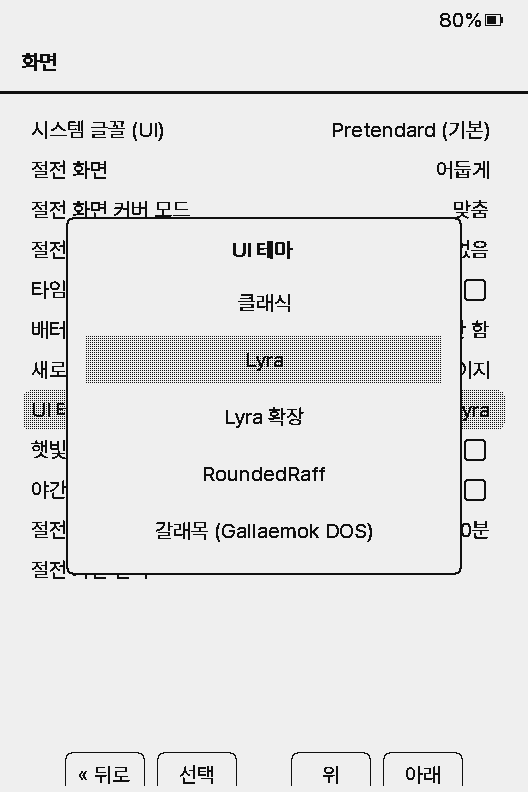
Change the look of Home and lists in Settings → Display → UI Theme. It applies right away.
- Classic
- Plain list
- Lyra (default)
- Cover tile for the current book at the top
- Lyra Extended
- Up to three recent books on Home
- RoundedRaff
- Rounded-corner design
- Cover Grid
- Covers in a grid. S3 devices with extra memory only (not X3 or X4)
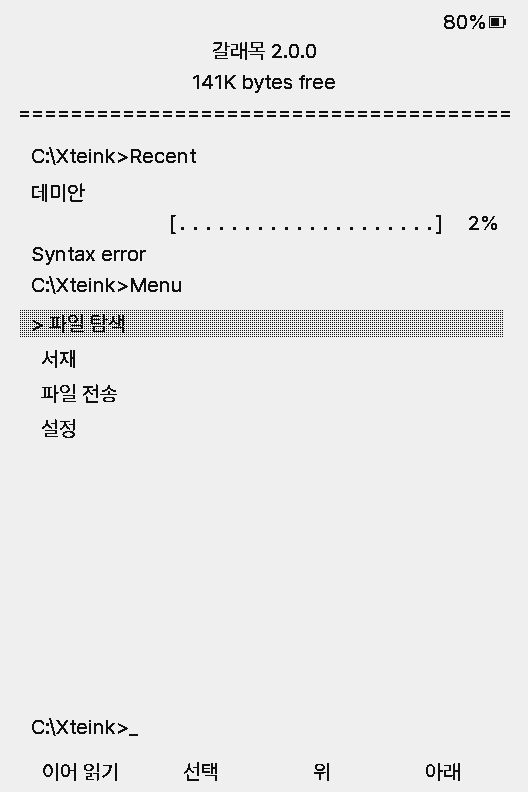
- Gallaemok
- Recent books (with progress) and the menu as text, like an MS-DOS screen. No covers are loaded
Gallaemok was made by community developer meat-holic. For a more DOS-like look, put the Romance of the Three Kingdoms III Korean font Sam3_23.epdfont (Sam3KRFont by 이담허, MIT) on the SD card and pick it under Settings → Display → System Font (UI). The theme works without it. The ‘Syntax error’ line under the recent books is part of the DOS look.
For a dark screen, turn on Night Mode (Settings → Display, or the reader menu) rather than looking for a dark theme.
Fonts
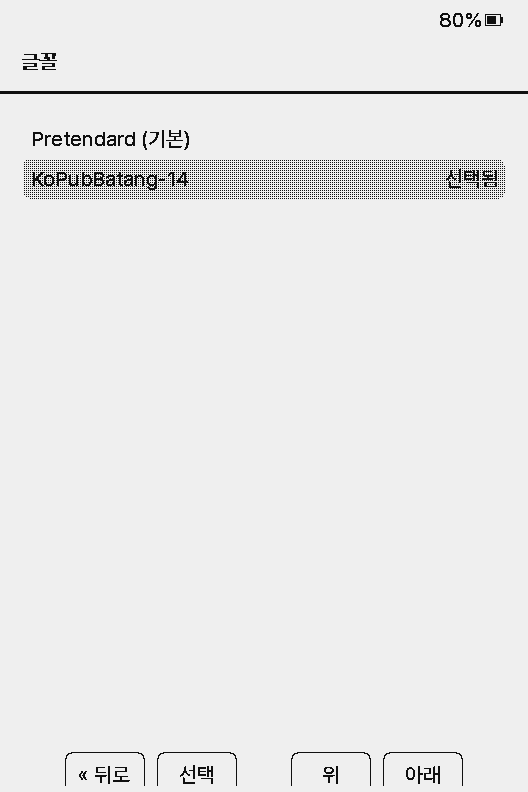
Body font: Settings → Reader → Reader Font Family. The default is the built-in Pretendard 10pt. It applies immediately and keeps your place; the book is re-indexed with the new font. To read in Pretendard 14pt (the default size up to 1.6.5) or KoPub Batang, download a file below, put it in /fonts on the SD card, and pick it.
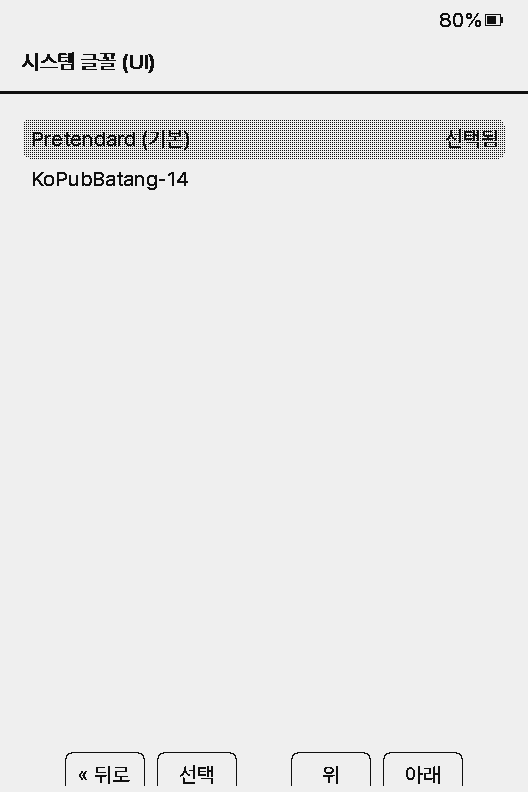
Menu font: Settings → Display → System Font (UI). The default is Pretendard 10pt, which also fills in any characters missing from the font you pick.
Adding fonts
- Convert a TTF or OTF to
.epdfontwith the font converter. Each size becomes its own file, and you choose the text size by choosing the file. - Copy the files to
/fonts,/.fonts, or/.crosspoint/fontson the SD card. Subfolders such as/fonts/Family/Family_size.epdfontare fine. - Pick the font from Reader Font Family (or System Font) on the device.
.cpfont and TTF files cannot be used directly on the device. Variable fonts, color (emoji) fonts, and bitmap-only fonts are not supported. See Korean fonts for more.KOReader sync
Sync your reading position with other devices (such as the KOReader app) through a KOReader-compatible sync server.
Use the public server (sync.koreader.rocks)
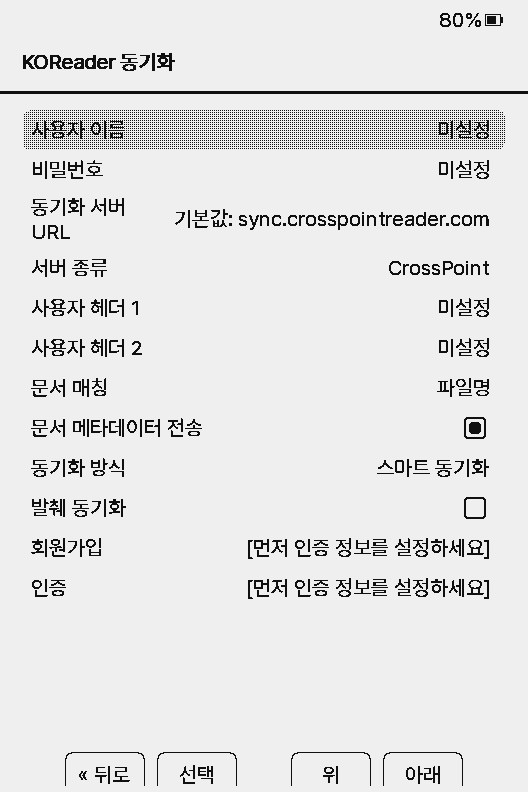
- Open Settings → Connectivity → CrossPoint Sync (KOReader 동기화 in the Korean menu).
- Enter a Username and Password. Type the password as is; the device sends its MD5 hash.
- Leave Sync Server URL empty or set it to
https://sync.koreader.rocks. - Run Authenticate if you have an account, or Sign Up if you don't.
On the same screen, choose Server Type (KoSync for the public server), Document Matching (Filename/Binary), whether to send document metadata, and Sync Behavior (Ask Every Time/Smart Sync). If file names differ between your devices, switch matching to binary.
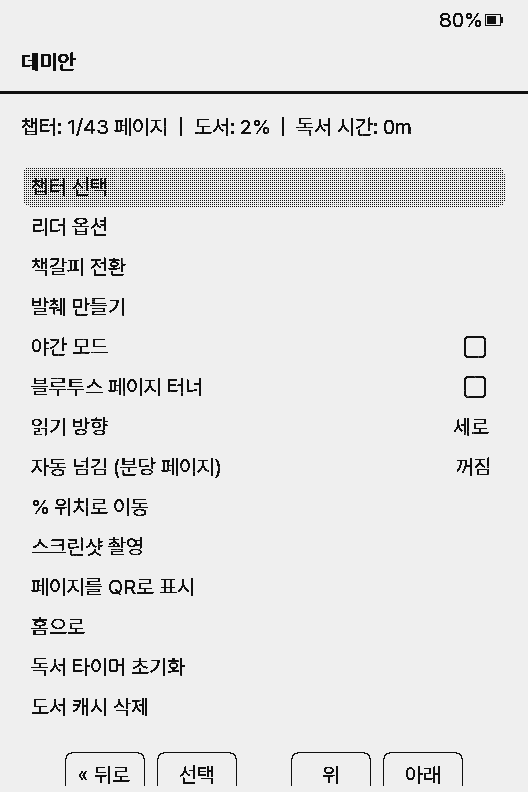
While reading, choose reader menu → Sync Progress to fetch the server position. Apply remote progress jumps there; Upload local progress sends your current position. Set Settings → Controls → Long-Press Menu to KOSync to open it by holding Confirm.
Host your own server (Docker)
You can also run a sync server on your home network.
mkdir -p kosync && cd kosync
cat > compose.yaml <<'YAML'
services:
  kosync:
    image: koreader/kosync:latest
    ports:
      - "7200:7200"
      - "17200:17200"
    volumes:
      - ./data/redis:/var/lib/redis
    environment:
      - ENABLE_USER_REGISTRATION=true
    restart: unless-stopped
YAML

docker compose up -d- Check it:
curl -H "Accept: application/vnd.koreader.v1+json" http://SERVER-IP:17200/healthcheck - Register a user with Sign Up on the device.
- Set the device's Sync Server URL to
http://SERVER-IP:17200, orhttps://SERVER-IP:7200for HTTPS.
Reading timer
Each book tracks how long you have read it. In both EPUB and TXT it shows as “Reading Time” on the top line of the reader menu (e.g. 45m, 1h 23m).
- Turning pages or returning from the menu
- Time adds up
- Auto page turn running
- Keeps adding up
- No input for 5 minutes
- Pauses; resumes on the next input
- While in the menu or chapter list
- Not counted
- Sessions under 30 seconds
- Not saved
- Every 5 minutes of reading, and when you close the book
- Saved
Reader menu → Reset Reading Timer sets only this book's time back to zero. The timer lives in the book cache, so clearing the reading cache erases it too.